
Now Reading: How to Update PlayStation Games and System Software on PS5 and PS4?
-
01
How to Update PlayStation Games and System Software on PS5 and PS4?
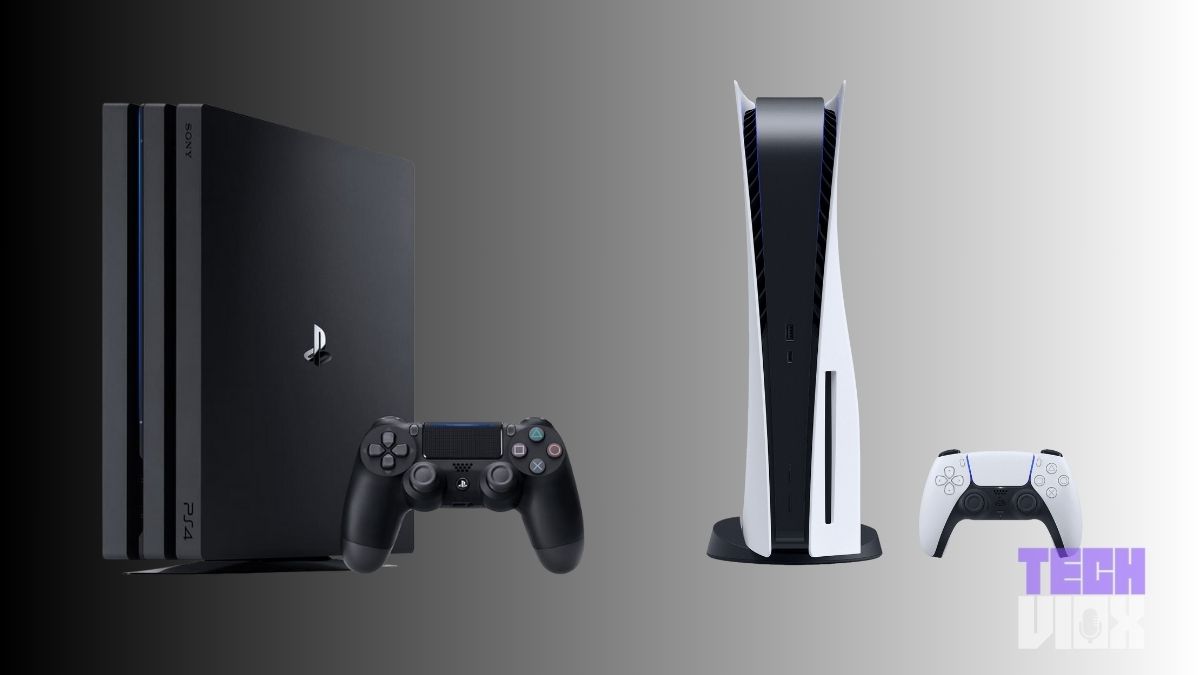

Sony provides straightforward options for updating games, apps, and system software on both the PlayStation 5 and PlayStation 4 consoles. These updates are important for maintaining compatibility, fixing issues, and ensuring stable functionality.
On the PlayStation 5, games and applications typically update automatically when launched. To manually check for updates, highlight the game on the home screen, press the Options button, and select “Check for Update.” If an update is available, follow the on-screen instructions to install it. This menu also allows access to saved data, game data, and add-on management.
On the PlayStation 4, the process is similar. Navigate to the Library, highlight the game you want to update, press the OPTIONS button, and select “Check for Update.” If a new version is available, the system will prompt you to download and install it.
To verify the current system software version on a PS5, go to Settings > System > System Software > Console Information. This section displays the system version and other console details such as the device name, IP address, and MAC address. A message stating “Up to date” confirms that the latest version is installed.
For PS4 users, the system software version can be found under Settings > System > System Information, along with other device-specific details.